01304 827609 info@use-ip.co.uk Find us

calendar date stuck!

Silver

New Member
Messages
4
Points
1
I am using iVMS-4200. The calendar date is stuck on Aug 6, 2021. I am trying to access recordings from Aug 29 and the calendar keeps reverting back to August 6.
How do I change the date? Thanks.
 
Hi @Silver

Can you please share a screenshot of the calendar from the iVMS-4200 playback menu?
 
Thanks for helping. Here is the screenshot.
 

Attachments

  • Screen Shot 2021-08-31 at 1.30.53 PM.png
    Screen Shot 2021-08-31 at 1.30.53 PM.png
    561.3 KB · Views: 231
Hi @Silver

Do you have motion detection or other smart events set on the camera?

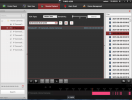
If so you are in the wrong playback section in iVMS-4200, your above screenshot is from VCA Playback which is only for post-recording event searches (e.g. you select an event, draw a trigger area, and then search your continuous recordings for any triggers in that area), as this is a post-recording tool and the event search is happening in the iVMS software and not the camera the results are not as accurate. If you actually have a smart event set in the camera settings you need to select the "Event Playback" option from the main playback menu (see below, it is the 1st button of the 4)

Screenshot 2021-09-01 at 09.13.22.png

This should then bring up a similar menu to VCA playback but you just select the event, set a time to search for those triggers, and then when you hit search you should be presented with a list of all the camera event triggers.
 
Thanks again for your help. I do not have any events set up. My only option (that I can see) is "remote playback." Not seeing the four buttons you posted. Shouldn't I be able to just click on a date and see the recordings from that date? Can you tell by this image if I have the latest software?

 

Attachments

  • Screen Shot 2021-09-01 at 1.35.06 PM.png
    Screen Shot 2021-09-01 at 1.35.06 PM.png
    1.6 MB · Views: 160
Hi @Silver

Currently, under Remote Playback you are using the VCA Playback option, if you click the small red X in the top right of the playback window (see your first screenshot above, red X just above the list of recordings on the right) that should close VCA playback and just take you back to standard playback where you should see all your continuous and/or event recordings like the screenshot below:

Screenshot 2021-09-02 at 09.14.24.png
If you click the date/time box in the bottom left of the above window you can set the day/time window you want to search for recordings and then click the search button below to bring those recordings up on the timeline.
 
Thank you so much! It worked. If you are even in Los Angeles I'd be happy to buy you a drink!
 
  • Like
Reactions: Dan
Back
Top